ChatGPT admin console: import the plugin for everyone
A workspace admin or owner does this once. There are two ways to add the plugin:
| You need | Updates | |
|---|---|---|
| A. Import from GitHub (steps 1 to 7) | A GitHub account that ChatGPT can connect to | Automatic, every day |
| B. Upload the plugin file (below) | Nothing else | You upload a new file when the version changes |
Option B file: Download atlas-plugin.zip
Both give the whole workspace the Atlas connector and all five Atlas skills as one plugin. The Atlas connector and all five Atlas skills then appear for the whole workspace as one plugin.
OpenAI marks any plugin that includes a connector Desktop only. People use this plugin in the ChatGPT desktop app. For ChatGPT in the browser, each person follows ChatGPT on the web instead.
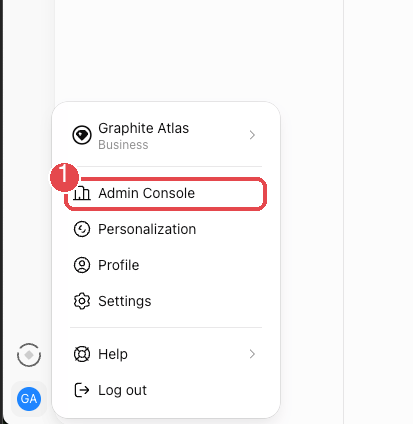
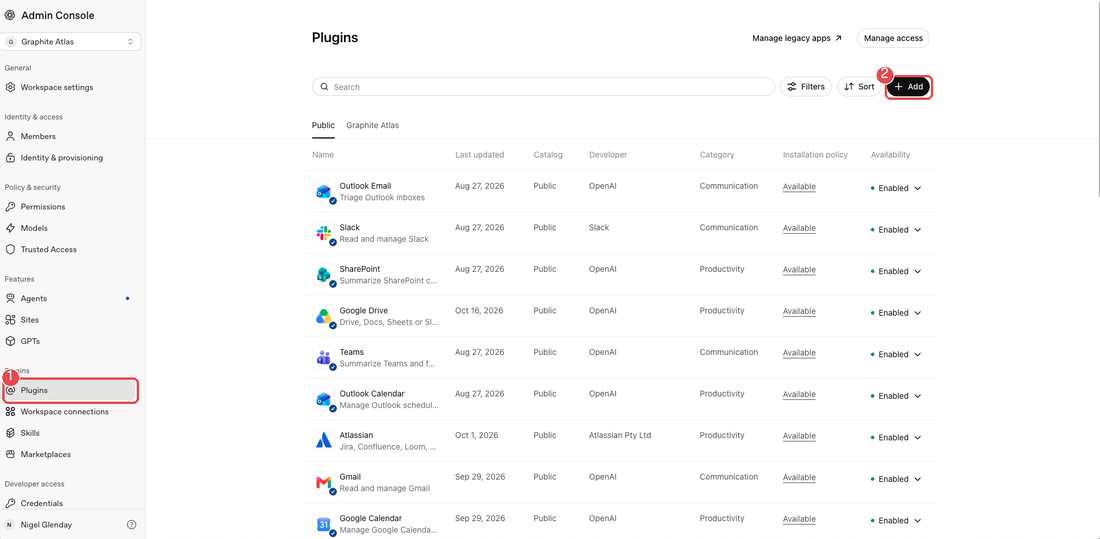
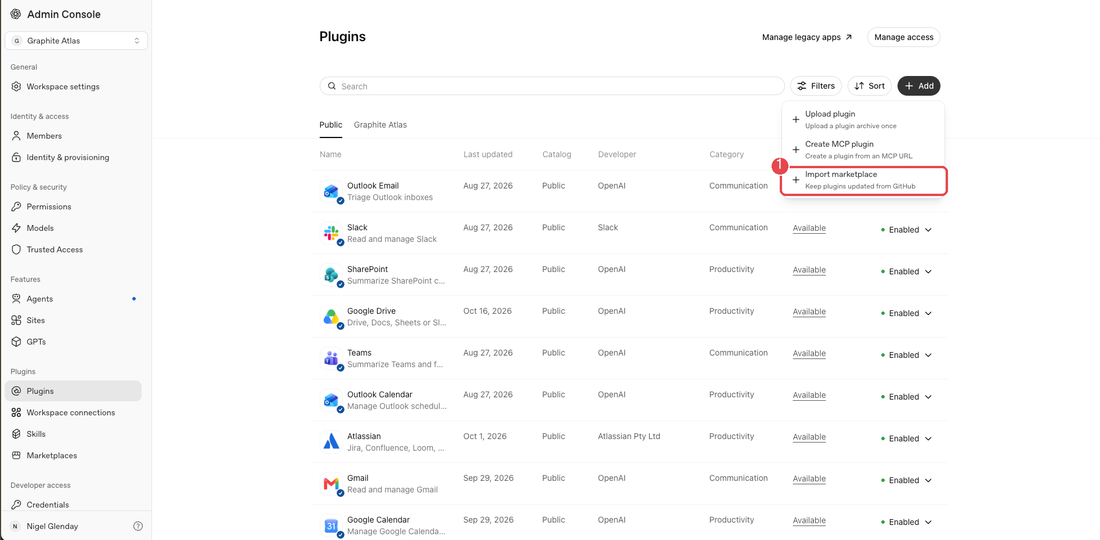
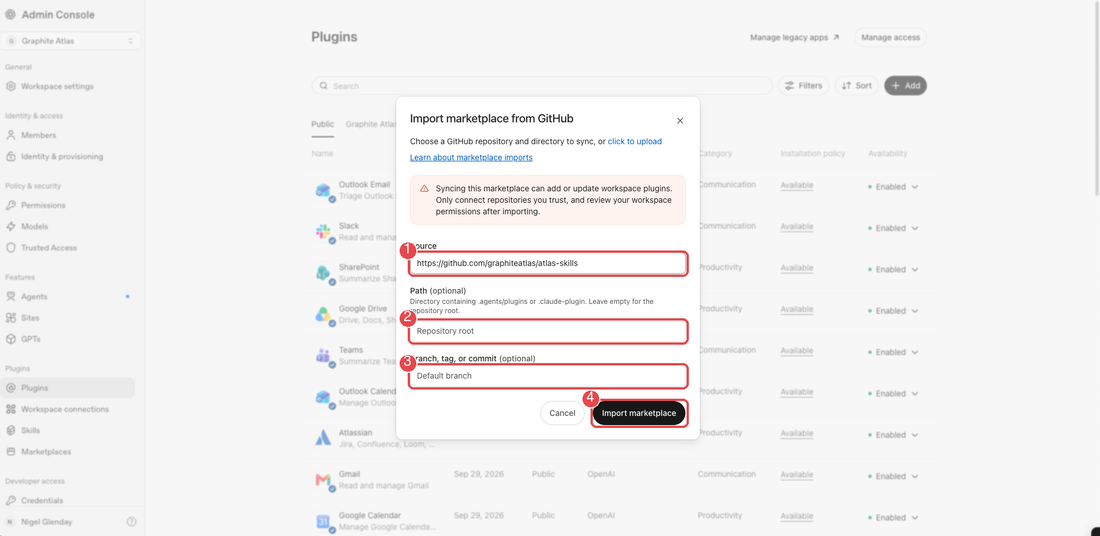
https://github.com/graphiteatlas/atlas-skills. Leave Path (2) on "Repository root" and Branch, tag, or commit (3) on "Default branch". Select Import marketplace (4).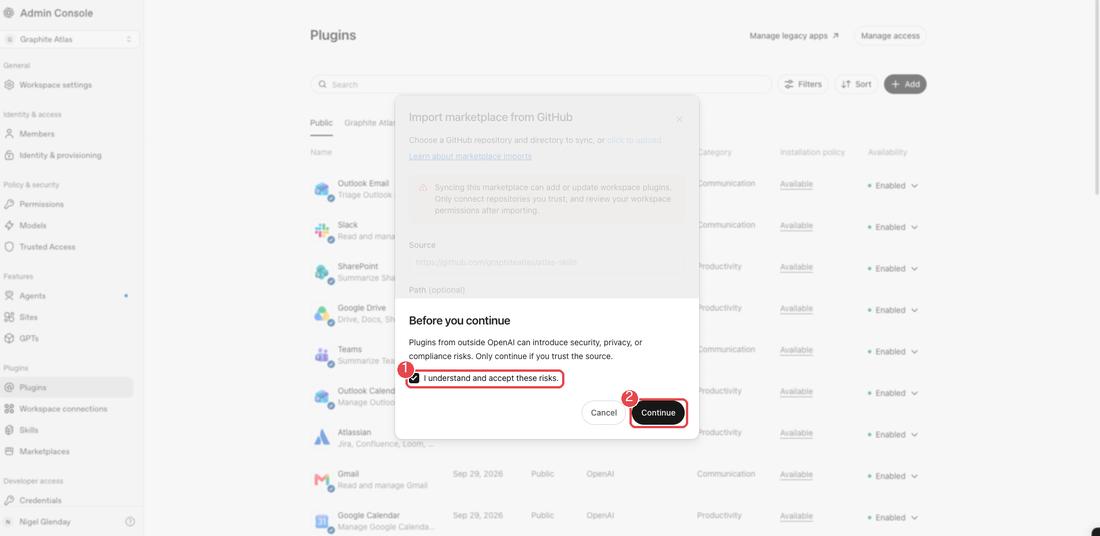
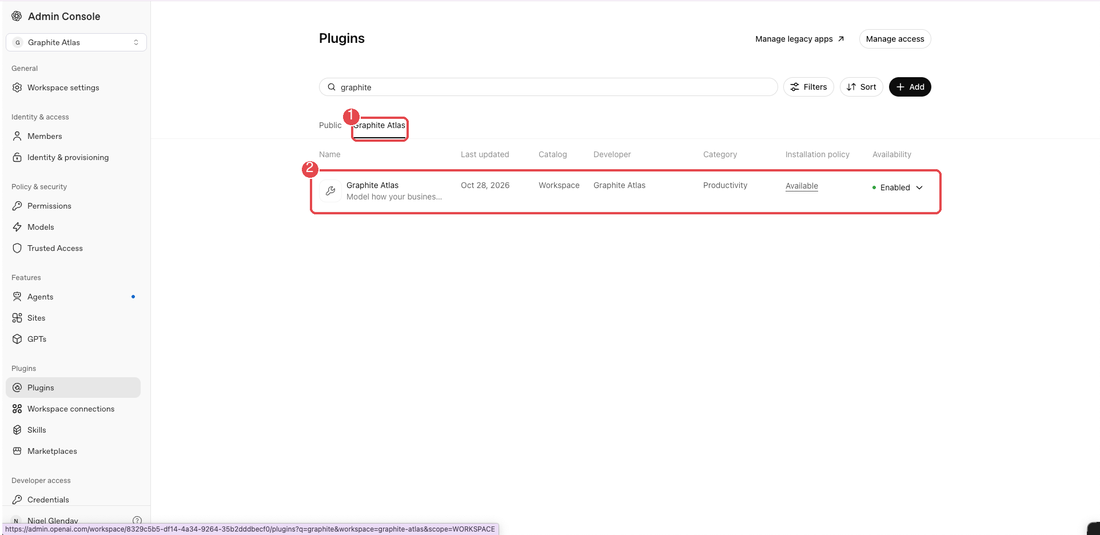
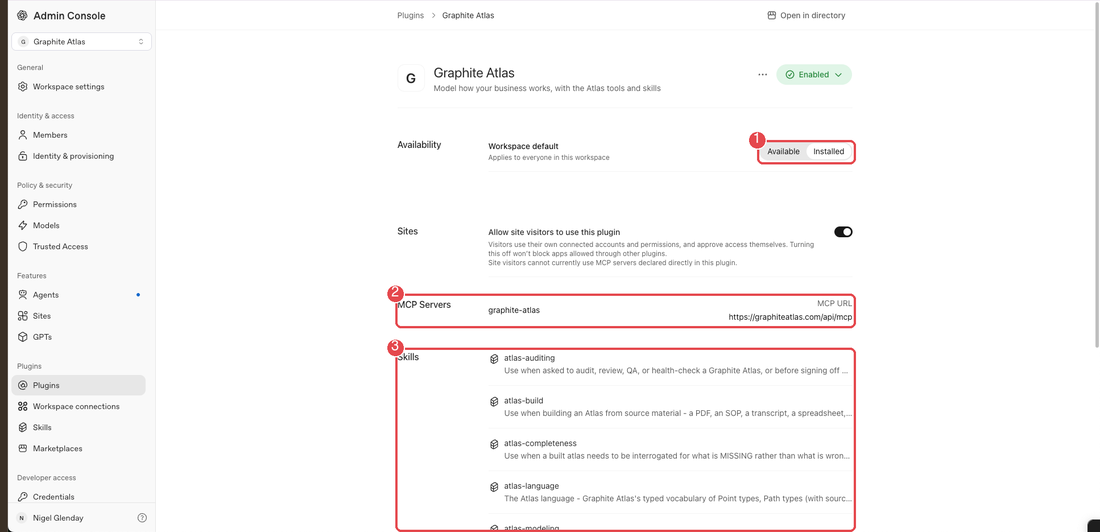
https://graphiteatlas.com/api/mcp (2), and the five Atlas skills (3).Option B: upload the plugin file (no GitHub account)
Option B was run end to end: ChatGPT showed "Plugin successfully uploaded". If it says A plugin named graphite-atlas already exists, the plugin is already in your workspace from an earlier attempt. Open Plugins, then Created by you, then Graphite Atlas, and update it with the new file instead of adding it again.
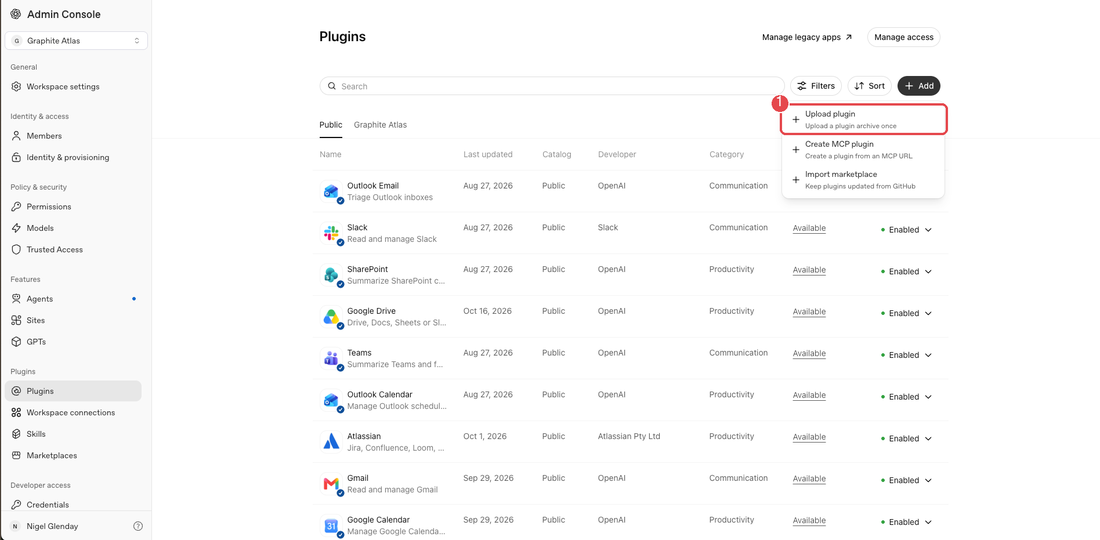
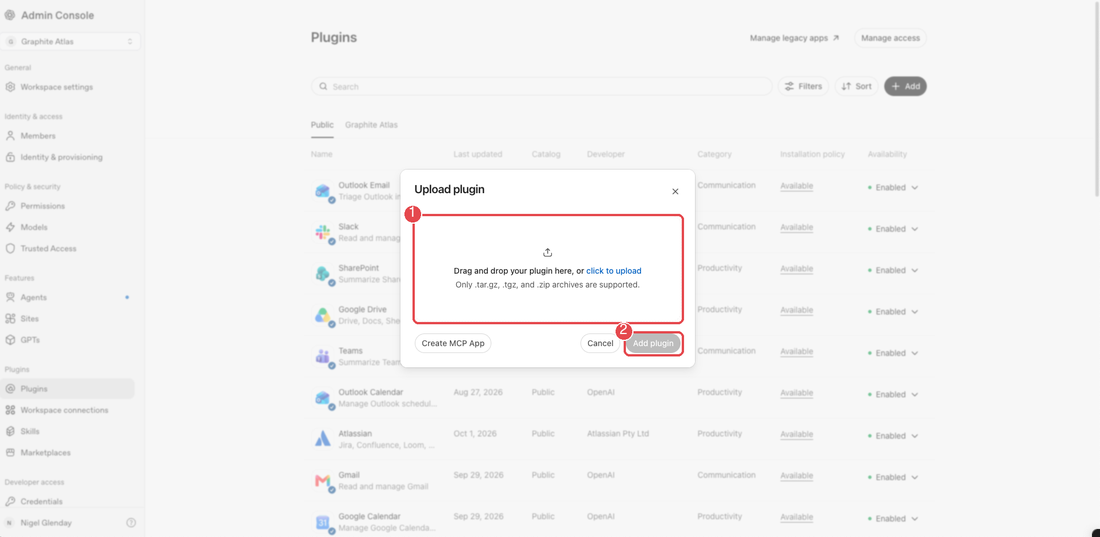
Download atlas-plugin.zip
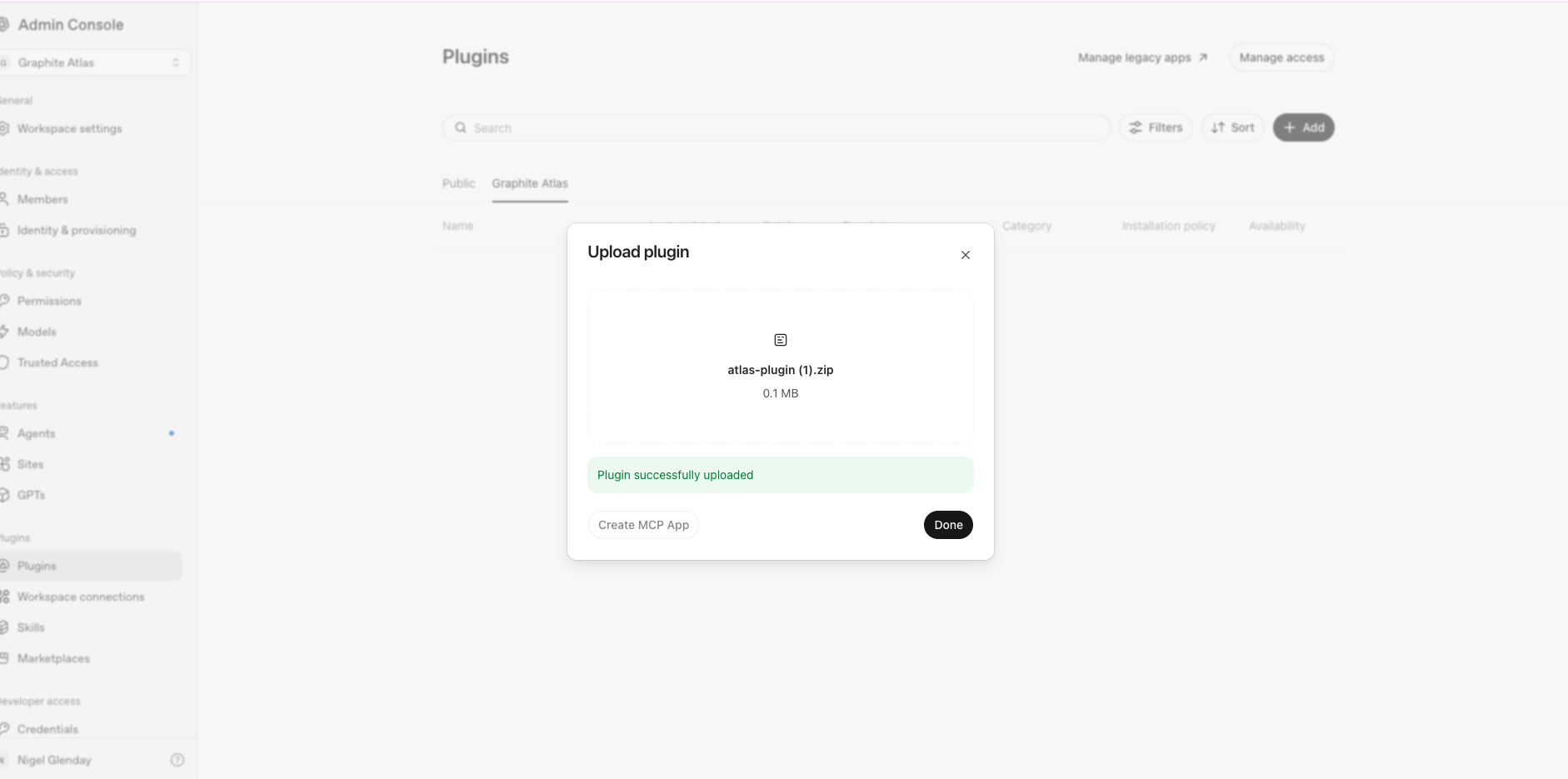
Select Add plugin (2). ChatGPT confirms with Plugin successfully uploaded; select Done.
B3. Set it to Installed. Open the plugin in the tab named after your workspace and set Workspace default to Installed, as in step 7. Current version: 0.3.3 (2026-11-13). To update, open the plugin and upload the new file when the version changes.
The other buttons you may see
The Add menu also offers Create MCP plugin, and the upload box has a Create MCP App button. Both make the connector only, with no skills, and ask an admin to turn on developer mode first. You do not need them.
What each person does next
Nothing to install: with the workspace default on Installed, the plugin appears in each person's account. Each person signs in to Atlas once with their own Atlas account: in the desktop app, Settings, Plugins, MCPs, then Authenticate next to graphite-atlas. See ChatGPT desktop app: step by step.
Keeping it up to date
ChatGPT checks the Atlas repository for changes every day and updates the plugin, skills included, so nobody repeats these steps. To pull a change at once, go to Admin Console, Plugins, Marketplaces, and select Sync now. Do not delete the marketplace: that removes the plugin for everyone.
People who set Atlas up with ChatGPT on the web uploaded the skills by hand, so they upload the new file again when its version changes.