ChatGPT desktop app: step by step
Sign-in is being fixed
On 28 October the Authenticate step (8) fails in the desktop app with "redirect_uri does not match a registered value". Until that is fixed, use ChatGPT on the web.
This installs the Atlas skills and the Atlas connector in one go, just for you. No admin is needed. For a whole workspace, see Import the plugin.
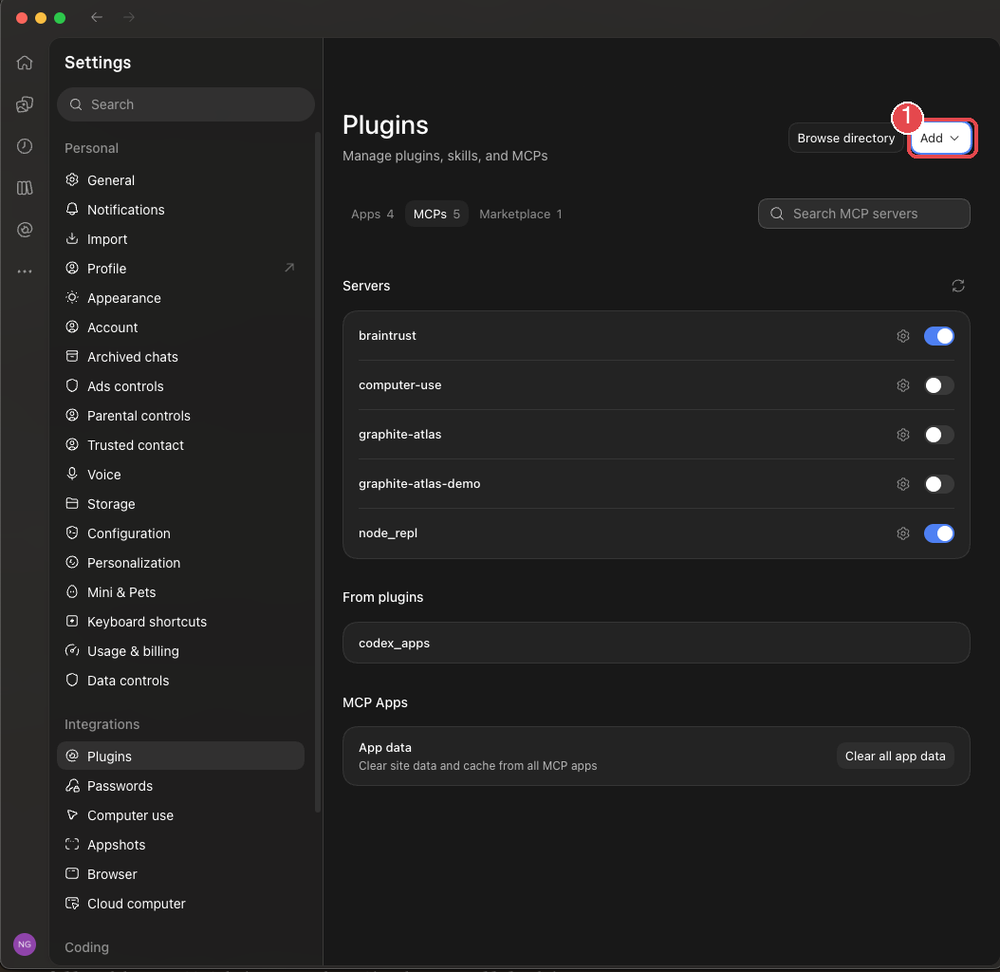
1. Open Plugins settings. In the ChatGPT desktop app, open Settings, then Plugins under Integrations. Select Add (1), then Add a marketplace.
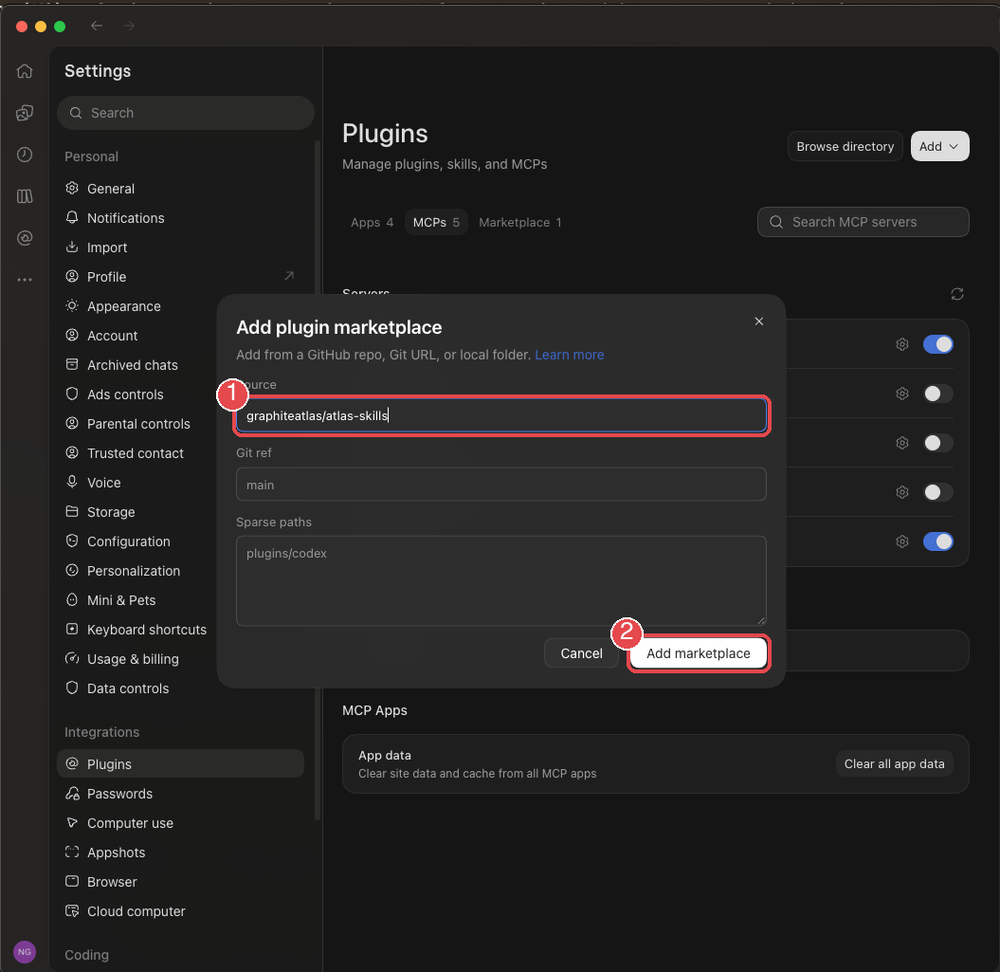
2. Add the Atlas marketplace. In Source (1), enter
graphiteatlas/atlas-skills. Leave Git ref and Sparse paths empty. Select Add marketplace (2).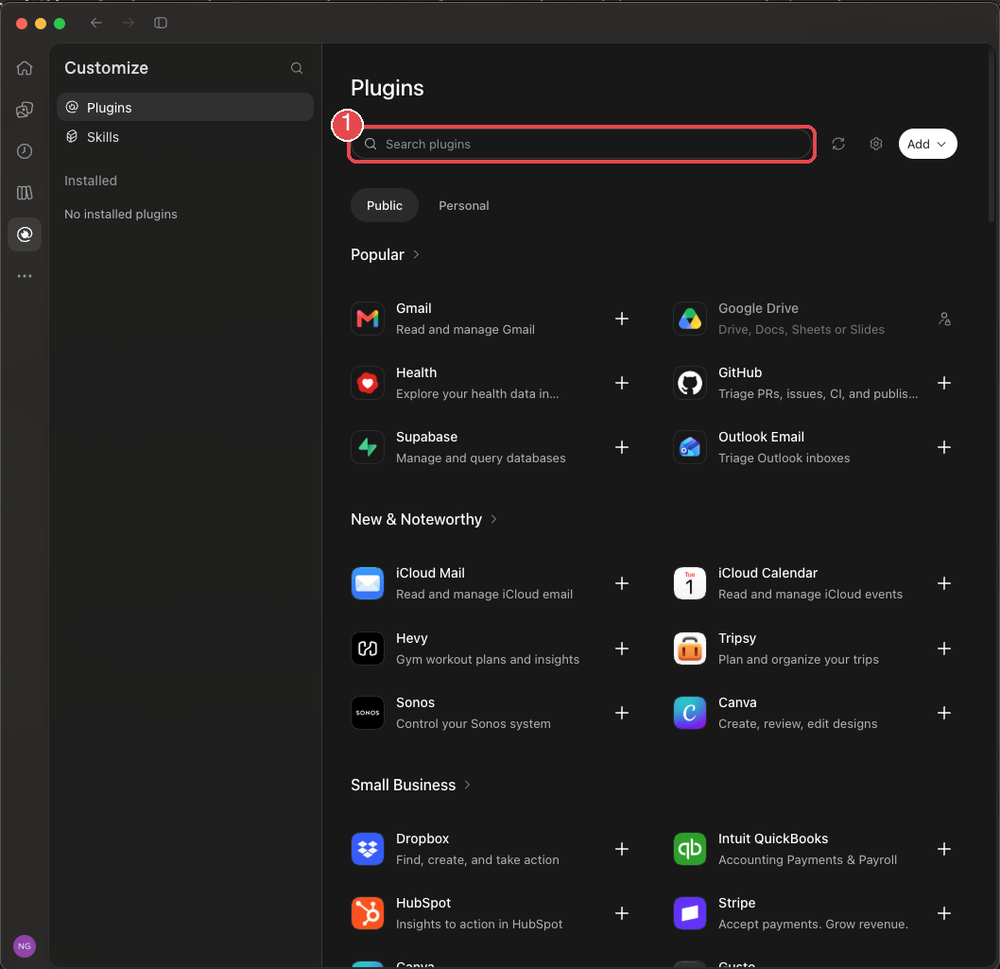
3. Find the plugin. Open the plugin directory (Customize, Plugins) and search for
graphite atlas (1).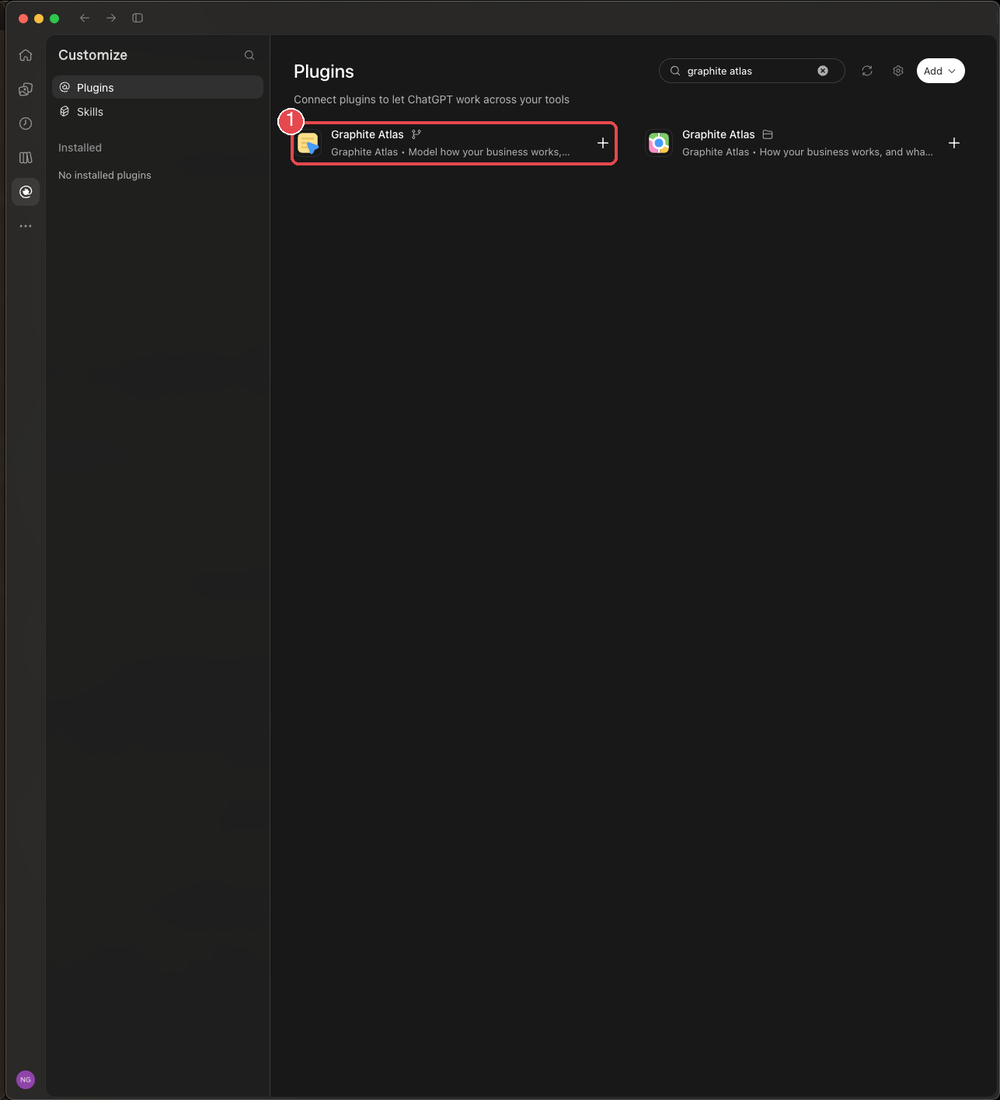
4. Open Graphite Atlas. Pick the result whose description starts "Model how your business works" (1).
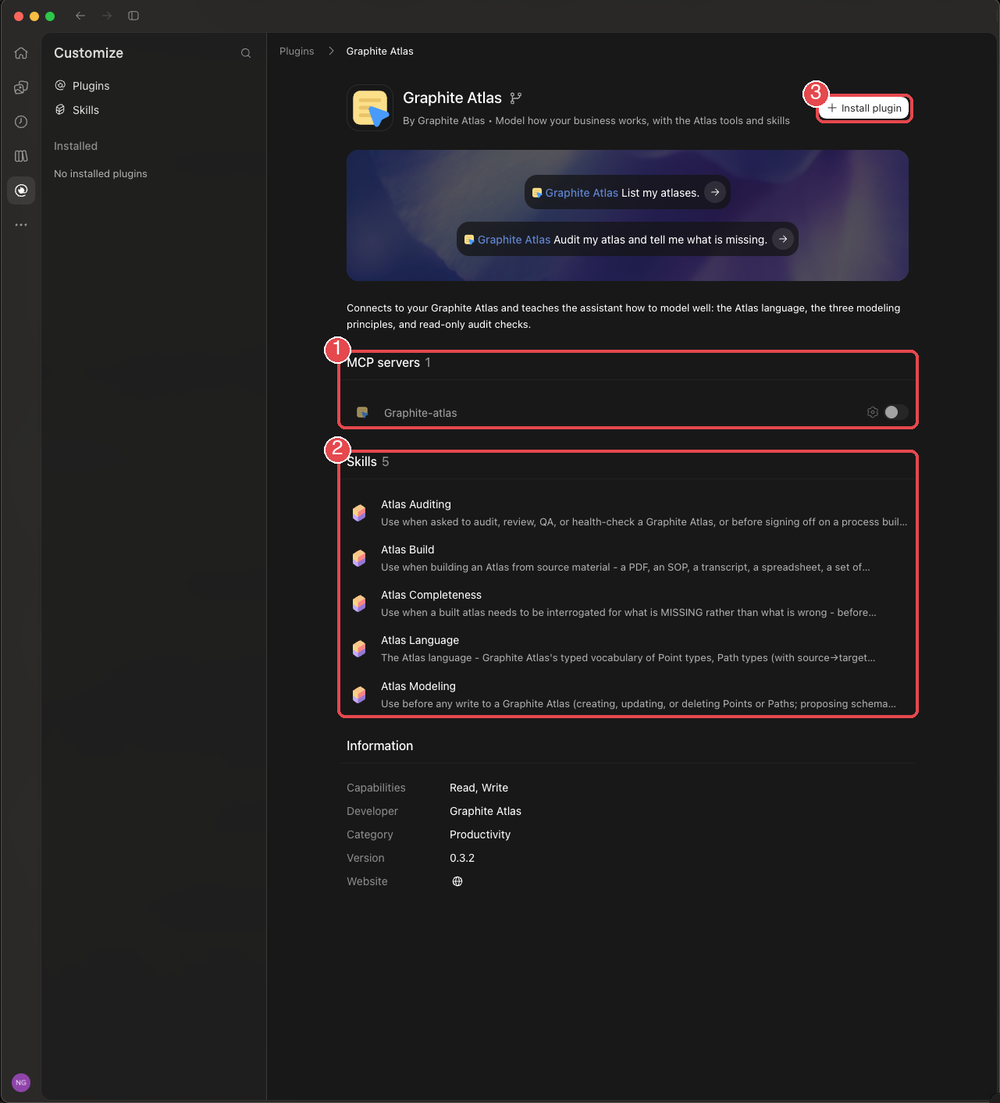
5. Check what is inside, then install. The plugin holds one connector, Graphite-atlas (1), and five skills (2): Atlas Auditing, Atlas Build, Atlas Completeness, Atlas Language and Atlas Modeling. Select Install plugin (3).
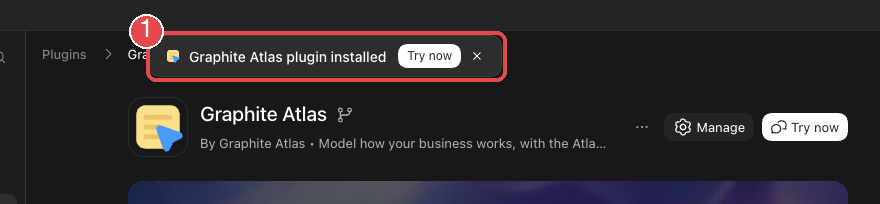
6. Confirm it installed. A "Graphite Atlas plugin installed" message appears (1).
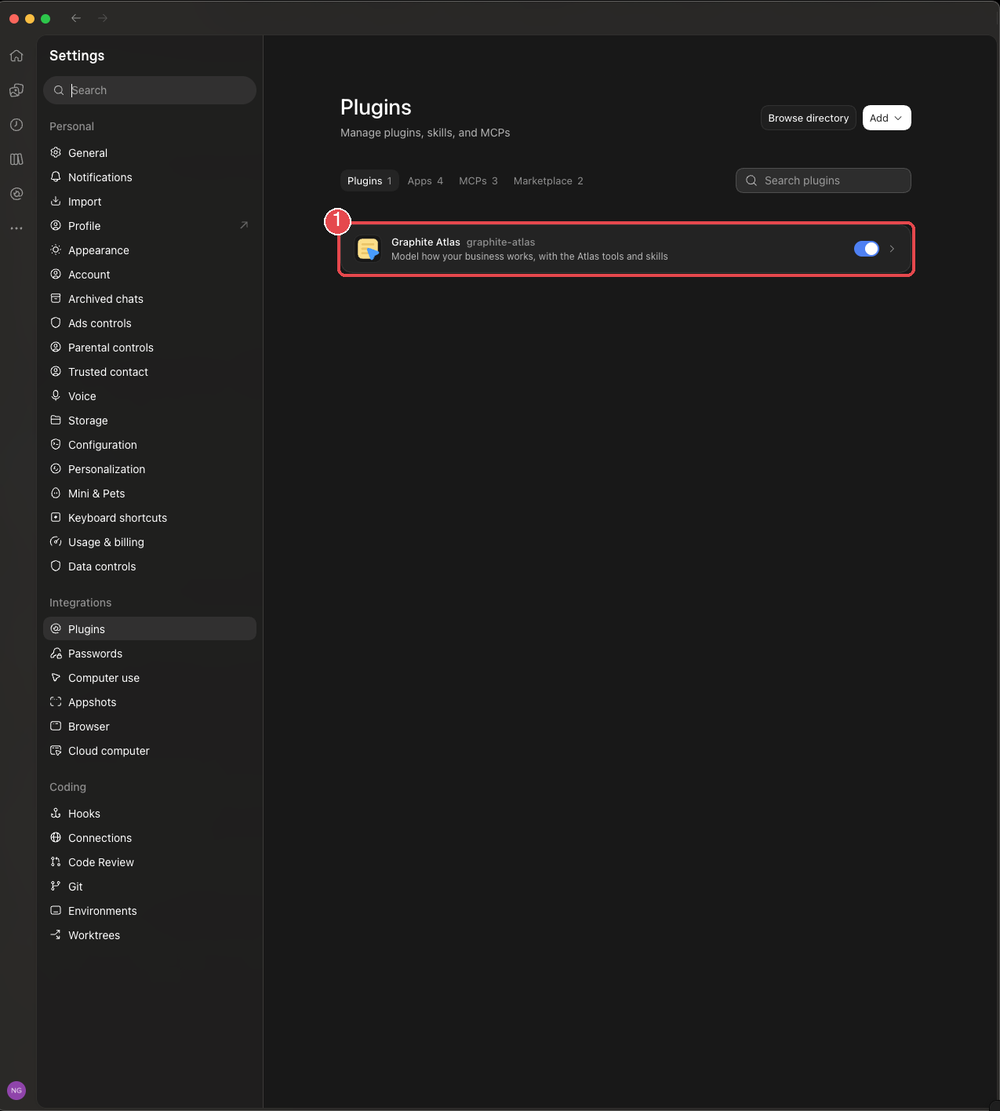
7. Check it is on. Back in Settings, Plugins, Graphite Atlas is listed and switched on (1).
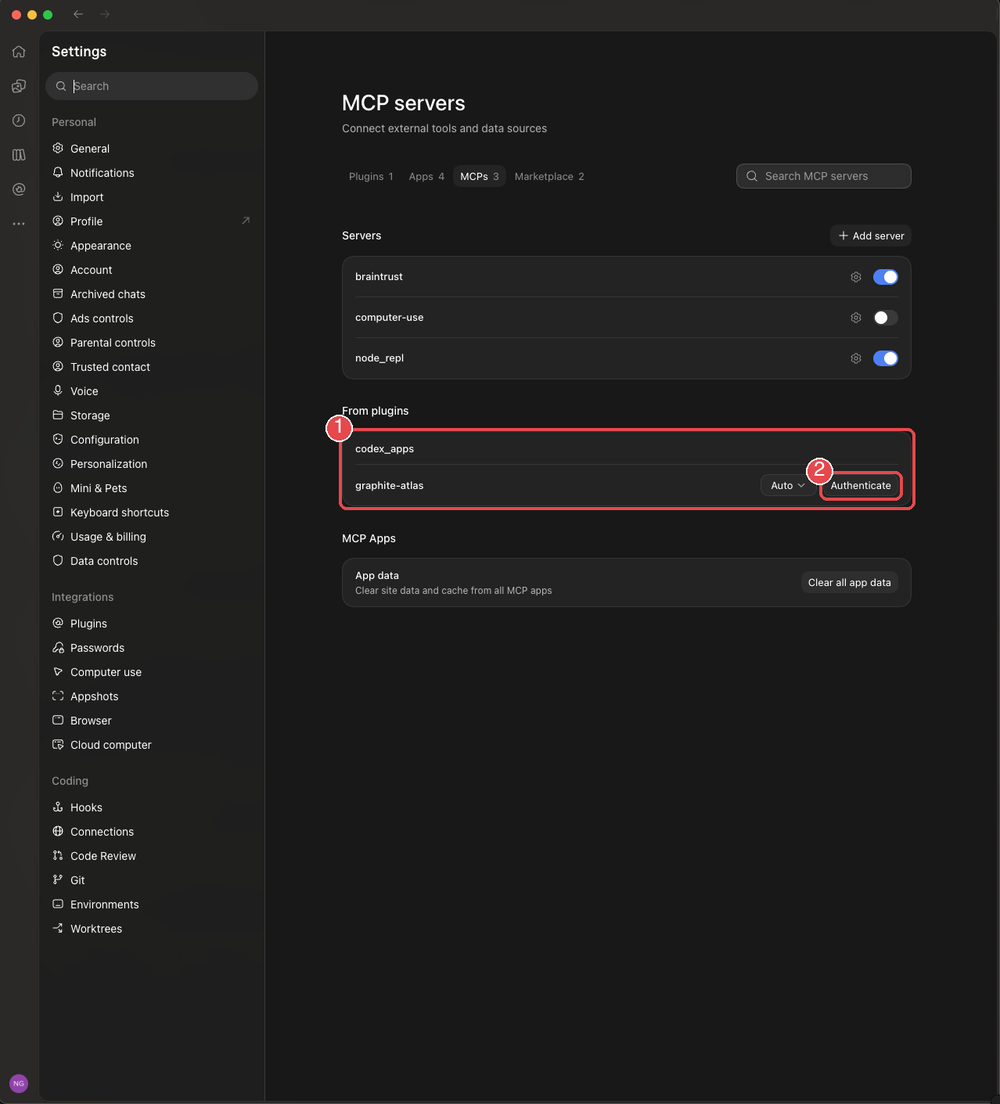
8. Sign in to Atlas. Installing the plugin does not sign you in. Open Settings, Plugins, the MCPs tab. Under From plugins (1), find graphite-atlas and select Authenticate (2). Your browser opens Atlas: sign in with your Atlas account (or approve, if you are already signed in) and return to ChatGPT.
Try it
Start a new chat, type @ and pick Graphite Atlas, then ask: "List my atlases." ChatGPT should call the list_atlases tool and show your atlases. The skills load on their own when you ask it to build or audit.
If you see two connectors named graphite-atlas under Servers, they are older hand-added ones. Switch them off so ChatGPT uses the plugin's.