Map from a transcript
Hand a meeting transcript to Navigator. It drafts a proposal, and nothing is built until you click Build.
Start from the meeting transcript: a Teams or Zoom transcript (.docx) or a PDF.
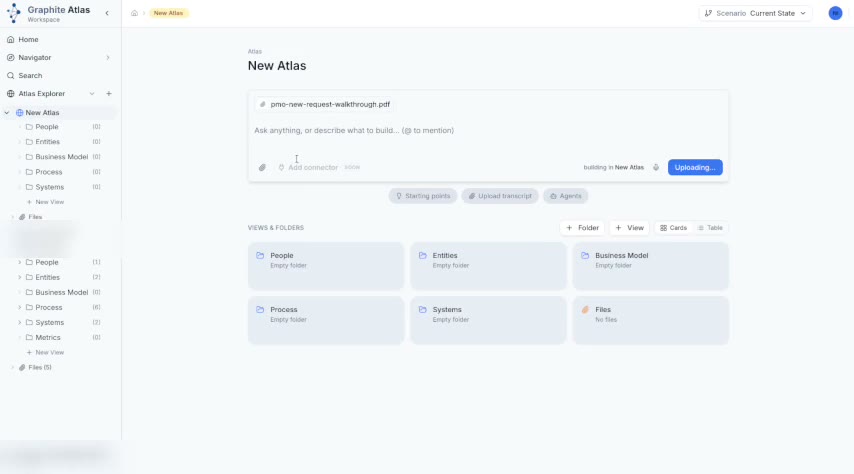
In the Navigator box, click the paperclip and attach the transcript.
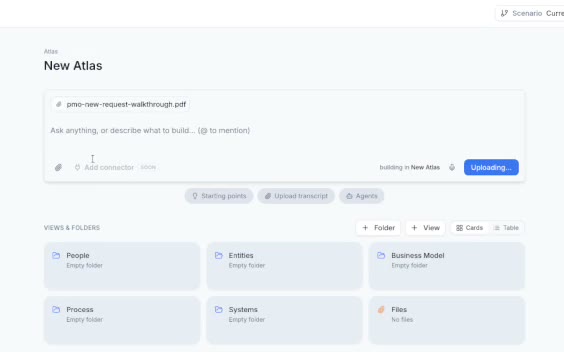
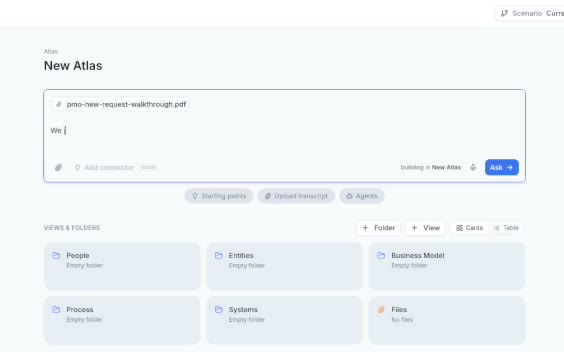
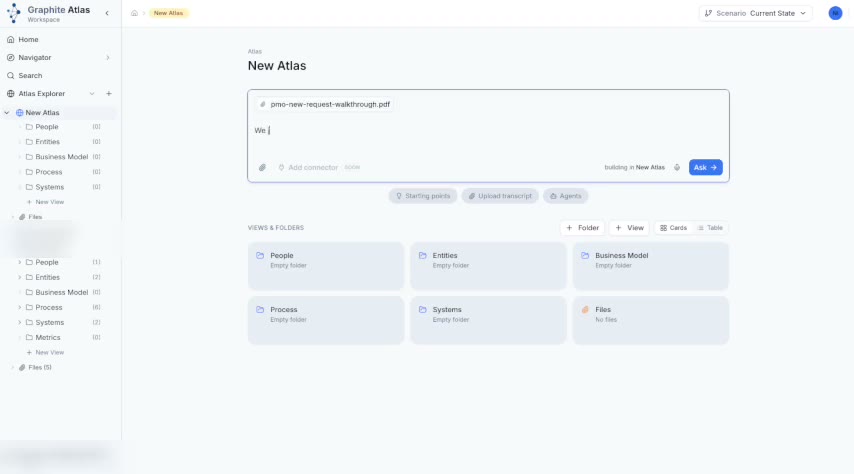
Ask in plain words, for example "We just finished this call, create a proposal based on this transcript," and click Ask.
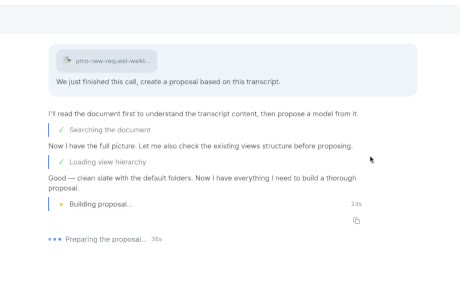
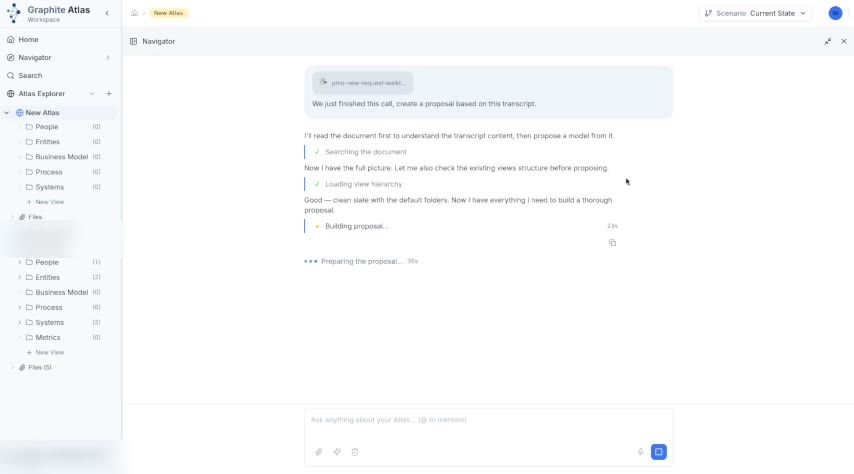
Navigator reads the transcript, checks what is already in the atlas, and drafts a proposal. For a short transcript this takes a minute or so (sped up in the video).
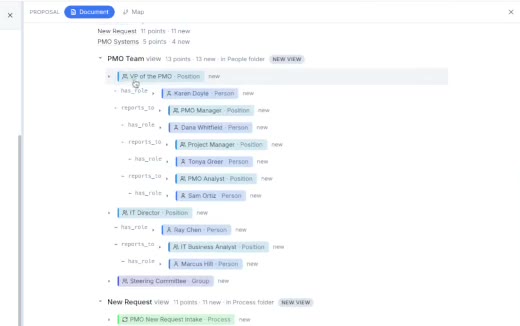
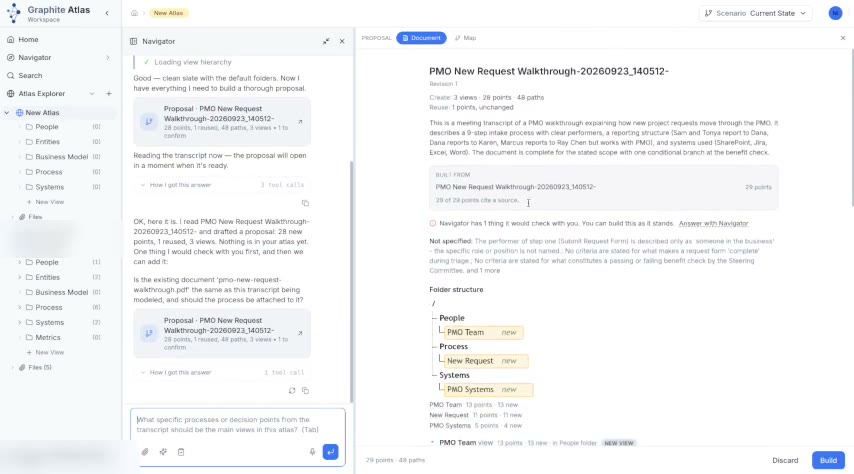
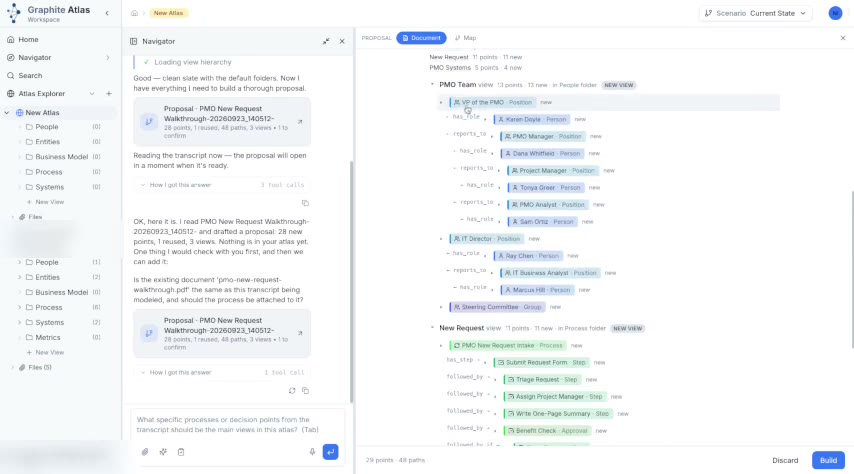
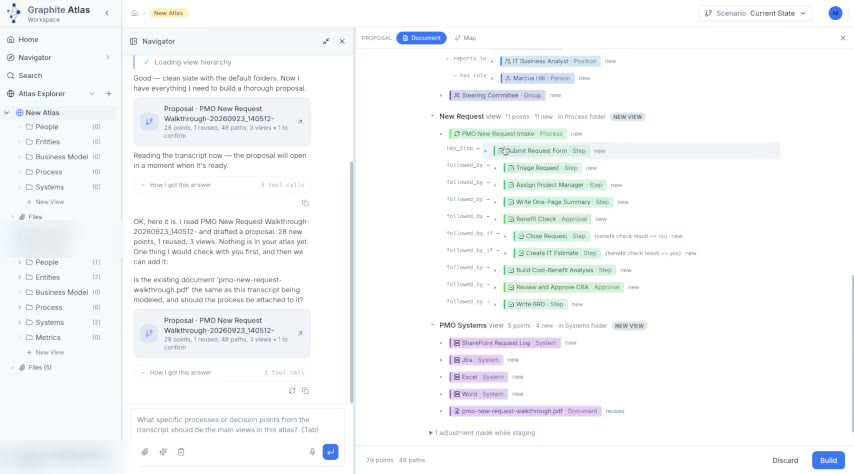
The proposal opens. It lists the folders and views it will create, and marks every item new or reused. Nothing is built yet.
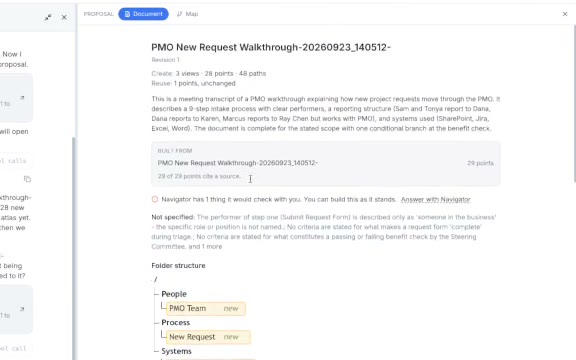
Open any item to check it, for example a role: who holds it and who it reports to.
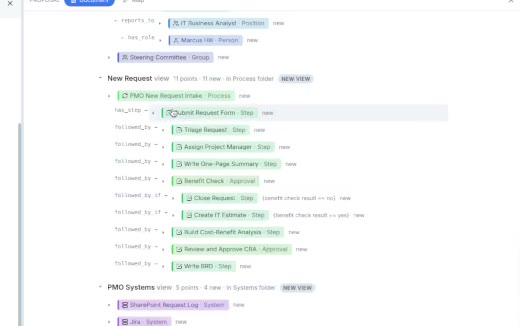
The process comes as a map: each step, what follows it, and the decision branches.
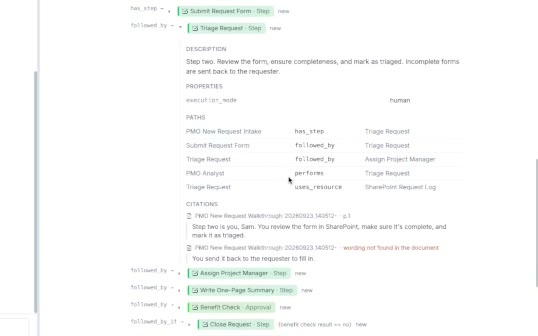
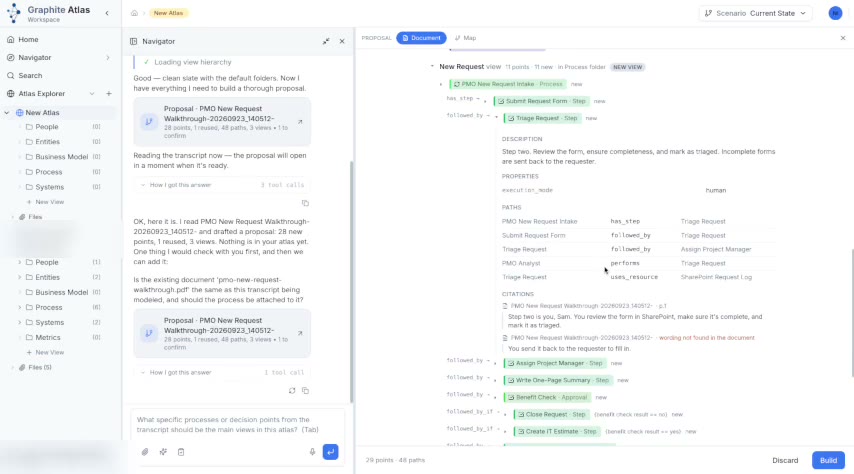
Open a step to see who performs it, the system it uses, and the passage of the transcript it came from.
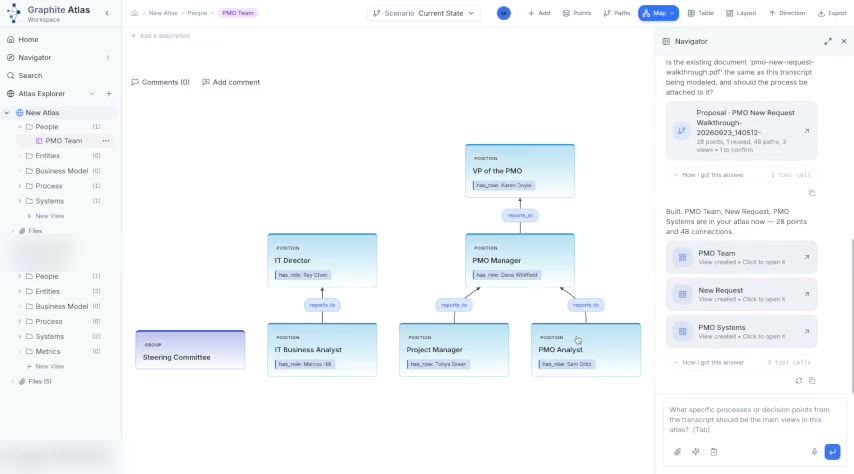
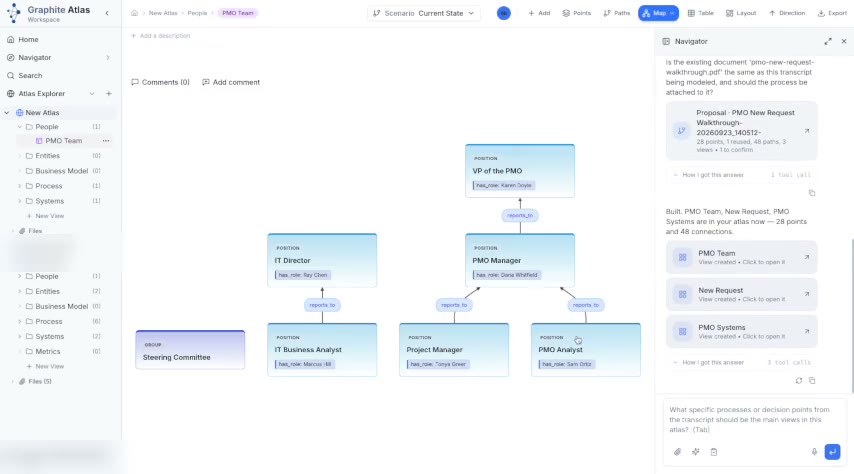
When it looks right, click Build. Open the new views from the links in the chat.
Tips
- One meeting per upload, and one process per request.
- If something in the proposal is wrong, say so in plain words before you build: "The controller signs off, not the analyst." Navigator revises the proposal.
- Walk through a real case on the call rather than describing the process in general.